
TABLE OF CONTENTS
Overview
In some cases, the shipping carrier used in your eCommerce store is supported by the marketplace, but Omnivore needs to map the carrier name so the marketplace can recognise it correctly.
When this happens, you may see an order with the status “Failed to Mark as Shipped” in Omnivore. The Order History Notes will show that the shipment was not accepted by the marketplace.
This usually occurs because the carrier name sent from your eCommerce platform does not match the carrier name format expected by the marketplace.
Because each marketplace has different carrier requirements, this mapping process is handled per marketplace.
This article explains how to map your shipping carrier for the following marketplaces:
Amazon
Bunnings
Kogan
Temu Global
Kmart
JB HiFi
Baby Bunting
Setup Steps
Go to: Settings → Marketplace Name (e.g. Bunnings) → Shipping
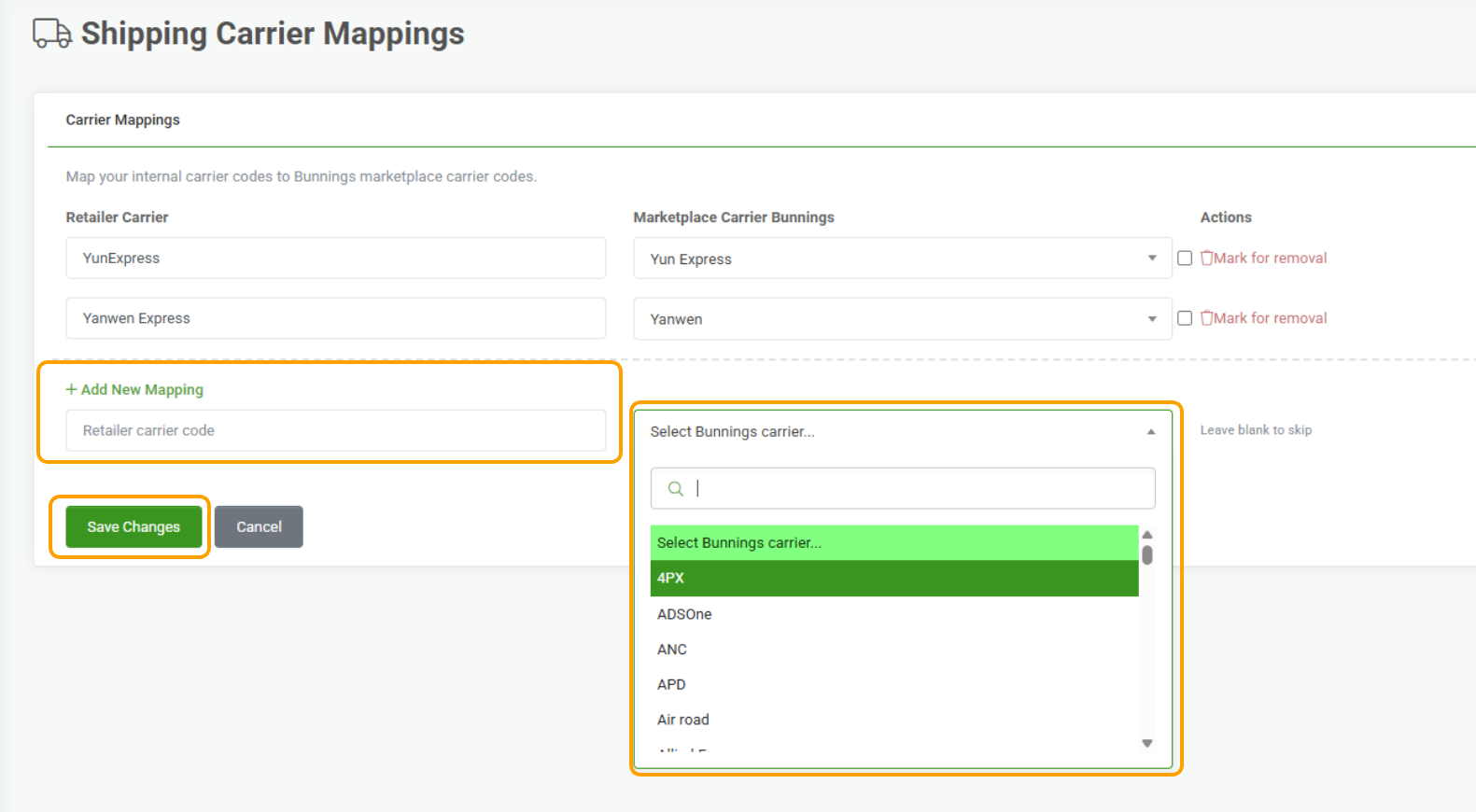
On the Shipping configuration page, click Edit Shipping Carrier Mappings.
Under Add New Mapping:
Enter your carrier name exactly as it appears in your eCommerce platform
- Ensure there are no leading or trailing spaces
Select the appropriate Marketplace Carrier from the dropdown list.
Click Save Changes.
If an order previously failed to mark as shipped:
Open the order
Click Retry at the top of the order page
Omnivore will apply the new carrier mapping and resend the shipment update to the marketplace.
If the error persists:
Recheck the carrier mapping details
Review the Order History Notes on the order page for additional error information
All shipment and status events are logged there.