
Only use this article if you have been asked to use a Private App to connect to Omnivore
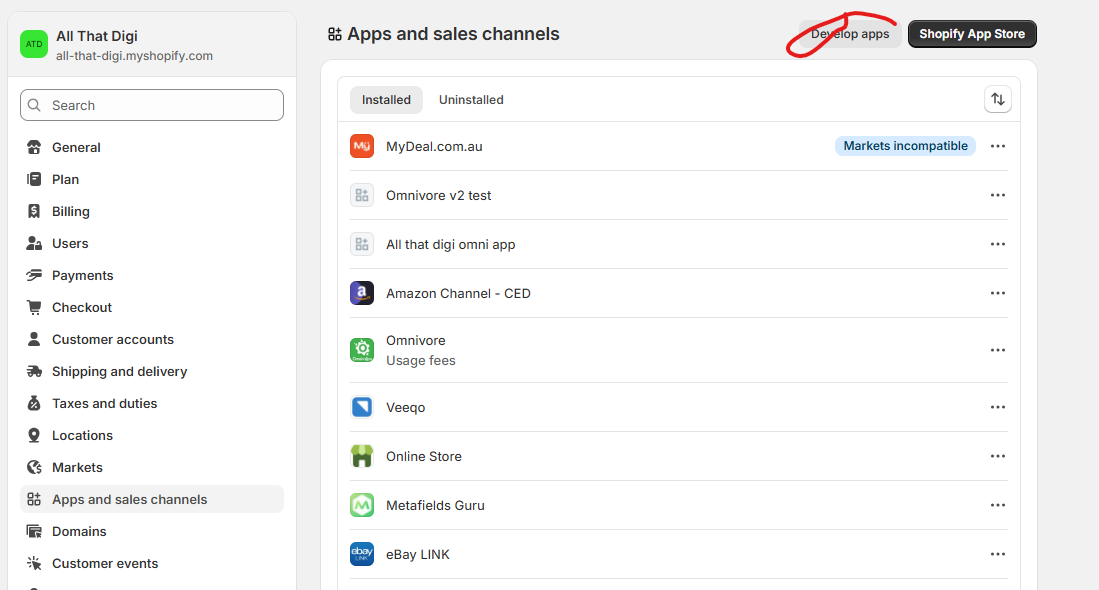
- RETAILER: Login to Shopify and go to Settings - Apps and Sales channels - click Develop Apps
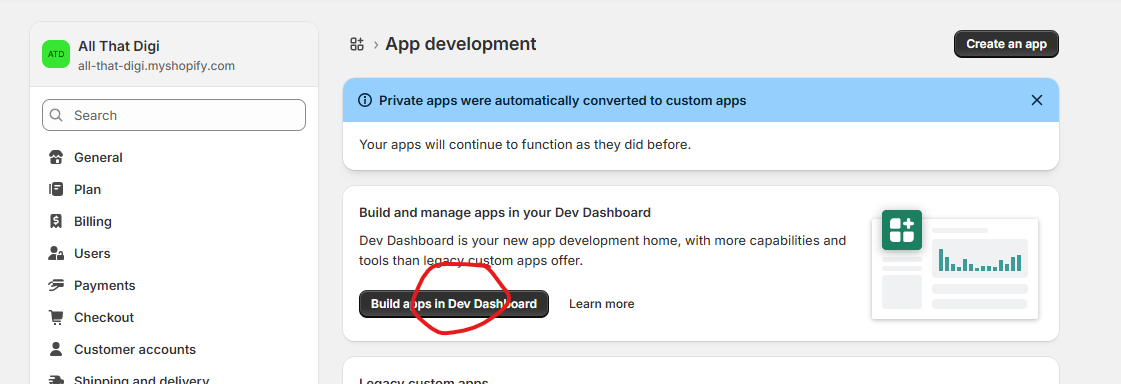
- RETAILER: Click Build apps in Dev Dashboard
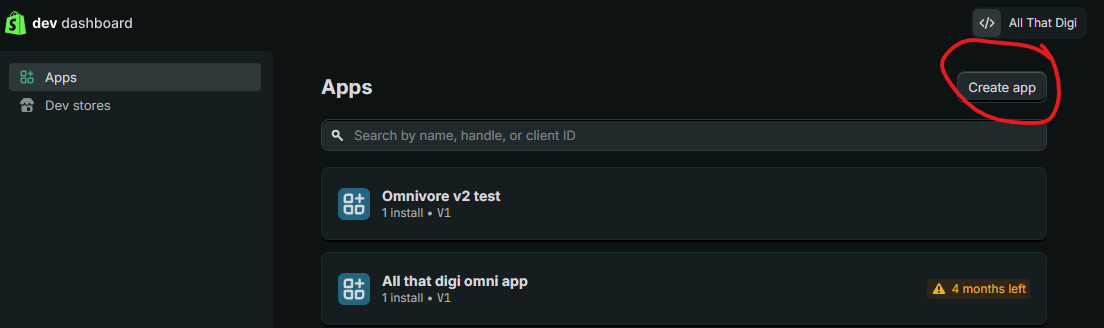
- RETAILER: Click Create app
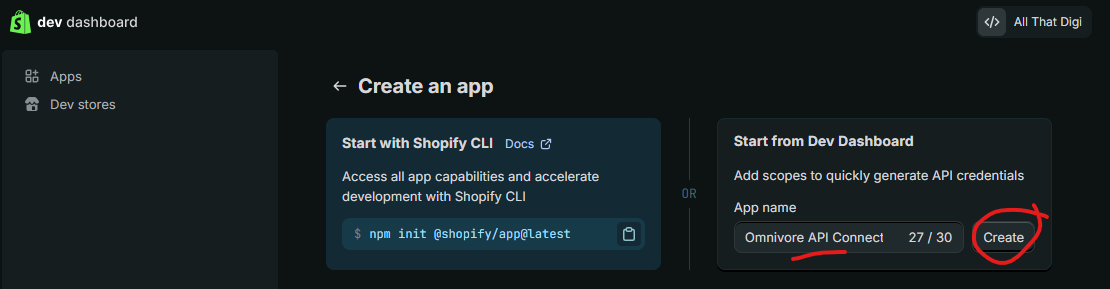
- RETAILER: Under Start from Dev Dashboard enter App name Omnivore API Connection App and click Create
- RETAILER: Enter https://shopify.dev/apps/default-app-home in the field App URL
- RETAILER: Uncheck the box Embed app in Shopify admin - THIS DOES NOT NEED TO BE TICKED
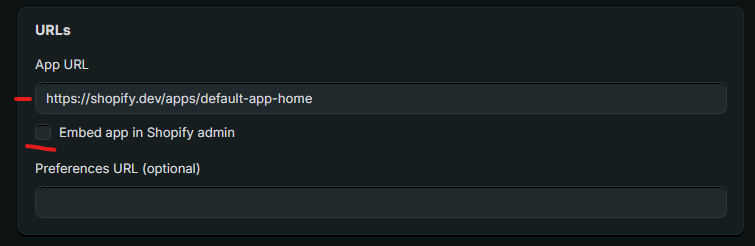
- RETAILER: Webhooks API Version should be the latest i.e 2025-10
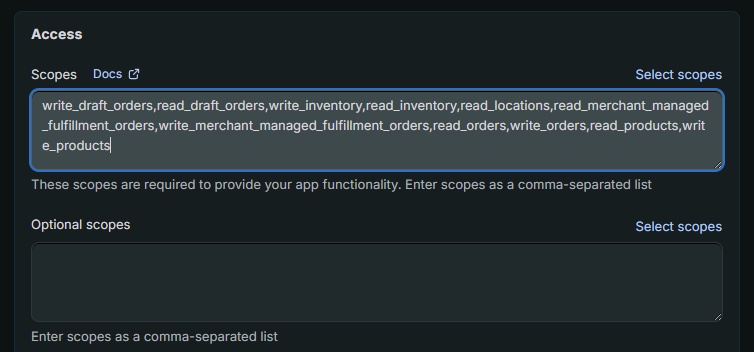
- RETAILER: Paste the following scopes into the text box write_draft_orders,read_draft_orders,write_inventory,read_inventory,read_locations,read_merchant_managed_fulfillment_orders,write_merchant_managed_fulfillment_orders,read_orders,write_orders,read_products,write_products
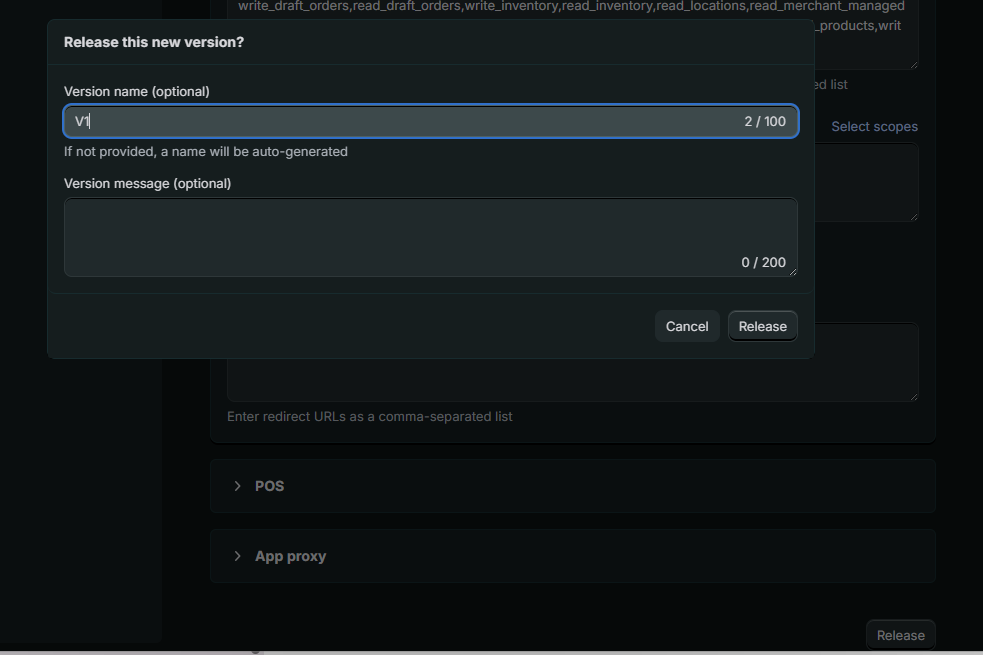
- RETAILER: Click Release and enter Version name V1 and click Release again.
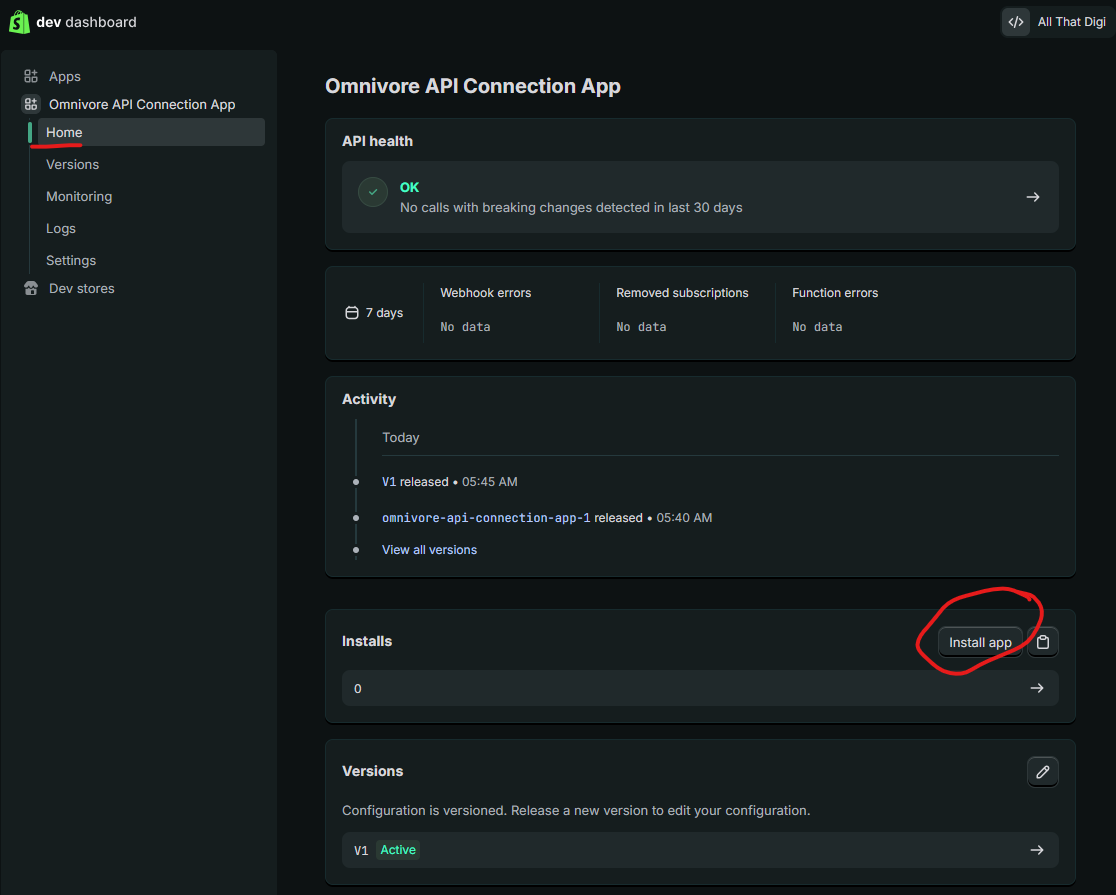
- RETAILER: In the left hand nav, click Home the Install app
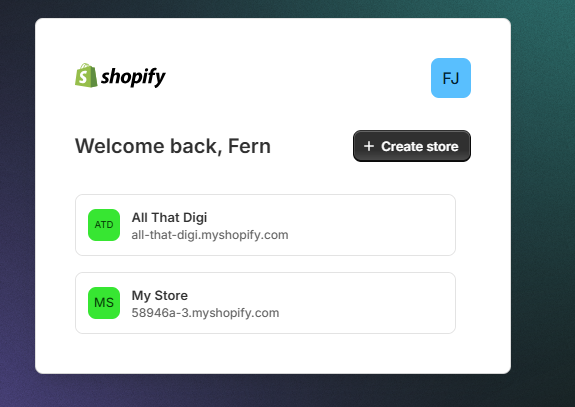
- RETAILER: Follow the prompts - they may be asked to choose a store:
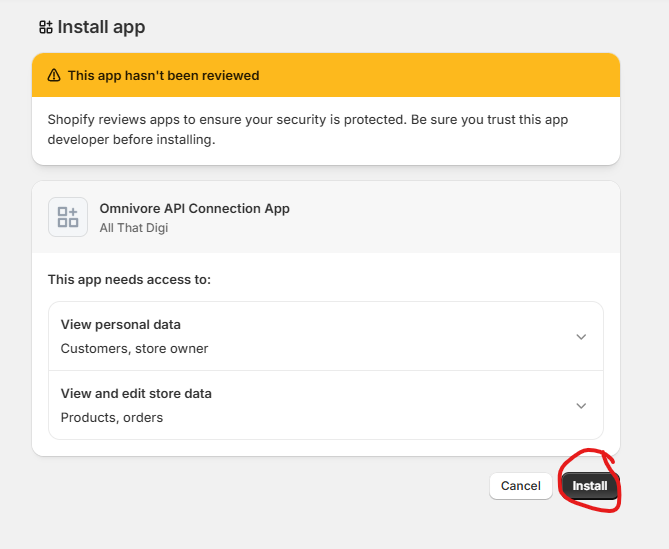
- RETAILER: Click Install
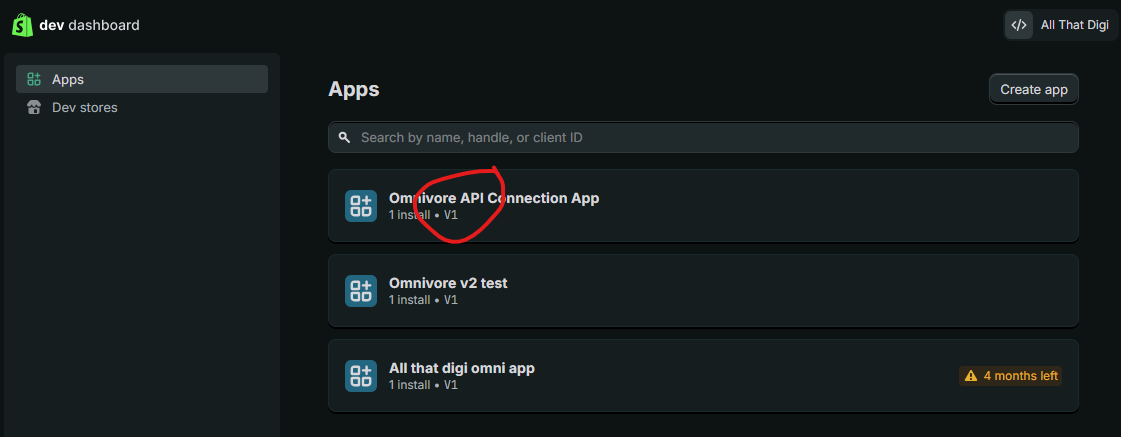
- RETAILER: Return to the Dev Dashboard (see above steps 1-3), click on the app Name:
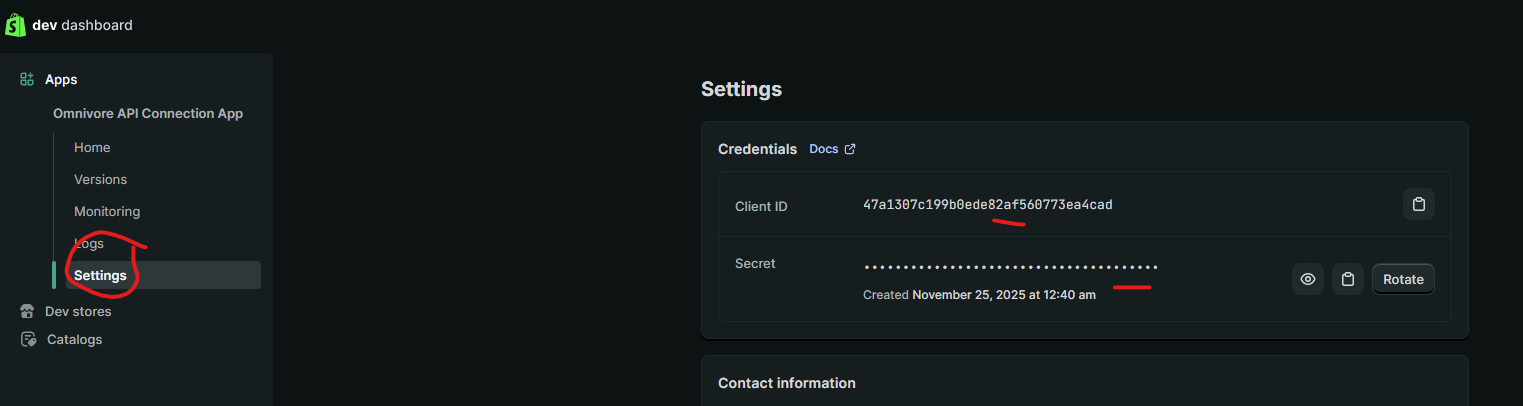
- RETAILER: Go to Settings and copy the Client ID and Secret.
- RETAILER: :Go to Omnivore account in Settings - Shopify Feed - General - Paste App Client ID and Secret (update screenshot)
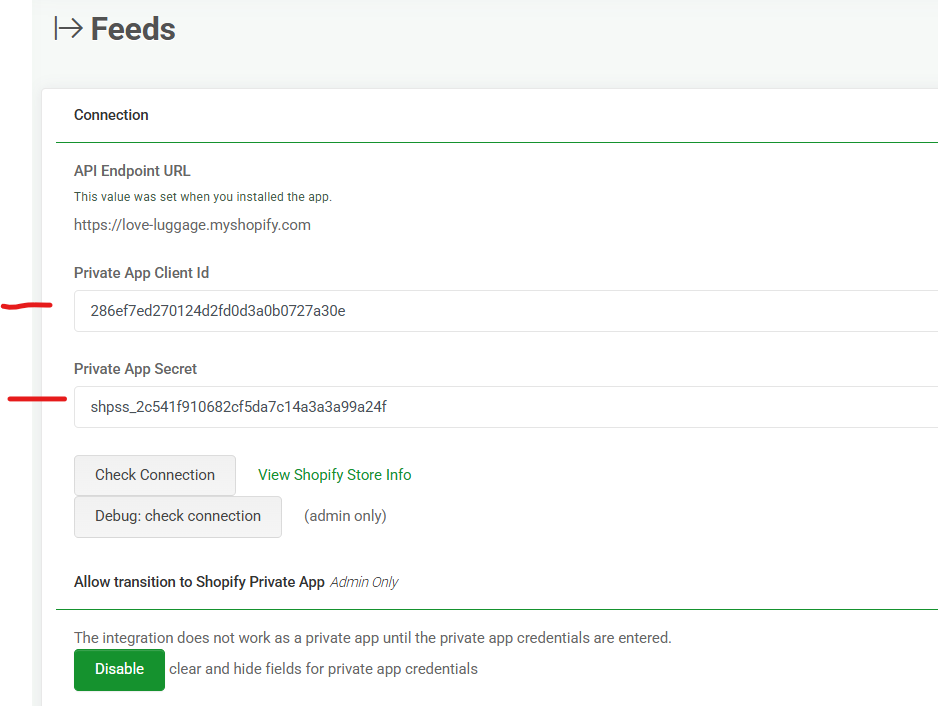
- RETAILER: Check Connection
