
Currently we list on TEMU AU.
TABLE OF CONTENTS
- Pre-Selling Check List
- Is TEMU right for you?
- Connect Omnivore to TEMU
- Required data fields
- Brand / Temu Attributes / Variants
- Select which products to list
- Pricing and Tax
- Shipping
- Stock Buffer
- Image Size
- Size Chart
- Product Condition
- Customer email address on orders
- Testing
- Before you click Start Selling in Omnivore
- FAQ's Mentioned In This Article
Pre-Selling Check List
Please review all of the following points before you click Start Selling on TEMU. Completing these steps early will save time and help ensure your setup remains on track.Is TEMU right for you?
TEMU has several requirements that sellers should carefully assess before deciding to list products on the platform.You do not set the retail price on TEMU. Instead, you provide a base price (ex GST) for each product. TEMU then sets the customer retail price and retains the difference as commission.
If TEMU determines your pricing is not competitive, they may recommend lowering your base price or remove your listings.
Shipping is capped:
• Products under $39 may charge up to $2.99 shipping
• Products over $39 must offer free shipping
You may factor shipping costs into your base price.
Orders must be shipped within 24 hours. If not shipped on time, TEMU will automatically refund the customer.
Connect Omnivore to TEMU
Follow the instructions in the FAQ to connect Omnivore to TEMU using your generated API key.It is recommended that this step is completed before continuing with setup.
Read more ...
Required data fields
All TEMU listings require the following data:Weight
Length
Width
Height
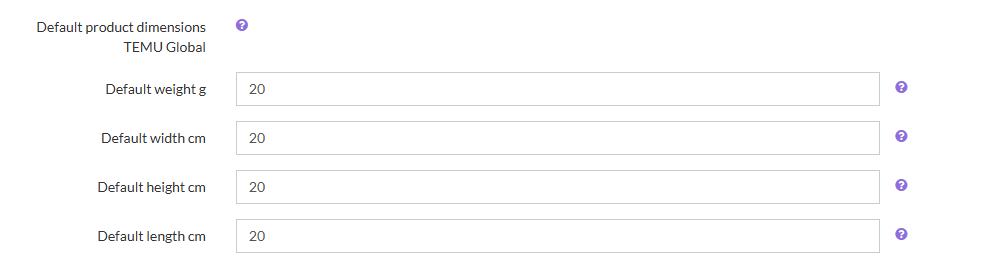
If your products do not contain this information, you can set default values within Omnivore. To set these values in Omnivore navigate to Settings - TEMU - General, scroll down and input the values in the fields. Be sure to Update settings on that page.
Brand / Temu Attributes / Variants
UPCs / Barcodes: Not required for TEMU.Attributes: TEMU requires attributes for each listing, and these vary depending on the assigned product category. Your products will not list until attributes have been applied. Please read this article here to setup the Mandatory Origin/Region attribute and others.
Brands: A brand name is required for all listings. TEMU has strict rules for brand approval—review these with your TEMU support contact and see the Brand & trademarks section in the TEMU help menu. If you do not have a trademarked brand you can set the option on the Temu side for each product. In this case, please raise a support ticket so we can update the brands you have set in Temu within Omnivore.
Variants: TEMU accepts Size and Colour variants. If you use additional variant types, Omnivore can map them to an accepted format— In this case, please raise a support ticket so we can complete the mappings for you.
Bullet points: Optional but recommended; you can add them in Omnivore to highlight product features.
Select which products to list
Assign each product a TEMU category before listing. WARNING - Choosing relevant/correct categories wisely. If you change a category, that product will have to be deleted on TEMU and resynced with its new category. Raise a support ticket if you need assistance.See Category Mapping for guidance.
If you do not wish to list certain products, you can block them individually or exclude them by brand or keyword.
Products without a category will not be listed.
All products require approval from TEMU before they become live and purchasable.
NOTE: some sellers on Temu map 1 or 2 products in each category first, attributes are required so doing it this way can help you understand what is needed for each category before sending up the entire catalogue.
Read more ...
Read more additional ...
International sellers may set custom exchange rates under Settings → Currencies.
A detailed pricing explanation is available in the TEMU Pricing FAQ.
Omnivore sends the price excluding tax, and TEMU adds sales tax to the final retail price. NOTE: pricing may be different to what is set to TEMU, they decide the final price.
Read more ...
$2.99 shipping for orders under $39
Free shipping for orders over $39
This structure cannot be changed.
After configuring shipping templates in TEMU, link them within Omnivore following the steps in the below support article.
This also include information about carrier mapping.
You can also create Product Groups in Omnivore to apply price adjustments and assign different products to specific TEMU shipping policies.
Read more ...
Settings → Administration → Product Import
Read more ...
Images below this size will not display on the marketplace.
Create a Product Group in Products → Product Groups
Go to Products → Product Actions → Create size chart
Enter the required details and provide a URL-hosted size chart image
Read more ...
Omnivore condition: new → Marketplace: new
If you have a question about condition types, consult our Support Team by raising a ticket.
Read more ...
Settings → TEMU → General → Default Order Email
Enter:
or
If you cannot access this setting, contact the Support Team for assistance.
Test your ecommerce connection:
1) Go to Settings → Feeds → General and click Test Connection.
2) A successful test will display “API connection successful”.
Test your order flow:
Read more ...
Read more additional ...
Pricing and Tax
Use promotions in Omnivore to adjust prices for individual items or groups of products.International sellers may set custom exchange rates under Settings → Currencies.
A detailed pricing explanation is available in the TEMU Pricing FAQ.
Omnivore sends the price excluding tax, and TEMU adds sales tax to the final retail price. NOTE: pricing may be different to what is set to TEMU, they decide the final price.
Read more ...
Shipping
TEMU offers only two shipping options:$2.99 shipping for orders under $39
Free shipping for orders over $39
This structure cannot be changed.
After configuring shipping templates in TEMU, link them within Omnivore following the steps in the below support article.
This also include information about carrier mapping.
You can also create Product Groups in Omnivore to apply price adjustments and assign different products to specific TEMU shipping policies.
Read more ...
Stock Buffer
If you carry low stock and wish to minimise overselling risk, set a stock buffer under:Settings → Administration → Product Import
Read more ...
Image Size
TEMU requires product images to be at least 600 × 600 pixels.Images below this size will not display on the marketplace.
Size Chart
If your products require size charts:Create a Product Group in Products → Product Groups
Go to Products → Product Actions → Create size chart
Enter the required details and provide a URL-hosted size chart image
Read more ...
Product Condition
Product condition mapping for TEMU is as follows:Omnivore condition: new → Marketplace: new
If you have a question about condition types, consult our Support Team by raising a ticket.
Read more ...
Customer email address on orders
TEMU does not provide customer email addresses. If your ecommerce platform requires one, in Omnivore go to:Settings → TEMU → General → Default Order Email
Enter:
${order_id}@<yourdomainname.com>or
${order_id}@temu.comIf you cannot access this setting, contact the Support Team for assistance.
Testing
Omnivore strongly recommends testing your setup before going live.Test your ecommerce connection:
1) Go to Settings → Feeds → General and click Test Connection.
2) A successful test will display “API connection successful”.
Test your order flow:
1) Open a product in Omnivore and scroll to the marketplace details.
2) Click Send Test to create a test order in your ecommerce system.
3) Fulfil and refund the order as normal, then mark it as Refunded Online in Omnivore.
2) Click Send Test to create a test order in your ecommerce system.
3) Fulfil and refund the order as normal, then mark it as Refunded Online in Omnivore.
Before you click Start Selling in Omnivore
The TEMU Marketplace tab will display “Setup” in yellow until all steps are completed.
Before clicking Start Selling, ensure:
- Your TEMU account is fully set up
- Selected roducts are mapped to the correct categories
- Shipping configuration is complete
- Unwanted products are excluded
- You are aware of the following: TEMU review all listings. They may want more information, this is very commonplace. This includes changes to titles, descriptions, attribute values, size charts, price changes, brand issues. These are not always reflected in the Omnivore UI so it is good practice to check on the TEMU side to see the reasons a product may not be listing.
FAQ's Mentioned In This Article
Obtain API Key and Connect Omnivore to TEMU
Apply a promotion to change the list price
Mapping Carrier Information with Temu