TABLE OF CONTENTS
Overview
JB Hi-Fi requires each product to have at least 3 Key Selling Points (KSPs) to be listed. Products without KSPs will not list. It’s best to add KSPs in Omnivore before clicking “Start Selling.”
If you do start selling without KSPs, the system will return Validation Warnings prompting you to add them.
If you have existing listings on JB Hi-Fi with KSPs you want to keep, please contact our Support Team to assist with preserving them.
Omnivore Setup - by Product or by Category
- This part of the setup covers doing it for the first time Product by Product or Category by Category.
- Navigate to Products - JB Hi-Fi - Marketplace Attributes Tab. Use the keyword field to search for your product OR at a a Category level, you can use the Product or Category buttons to add the data.
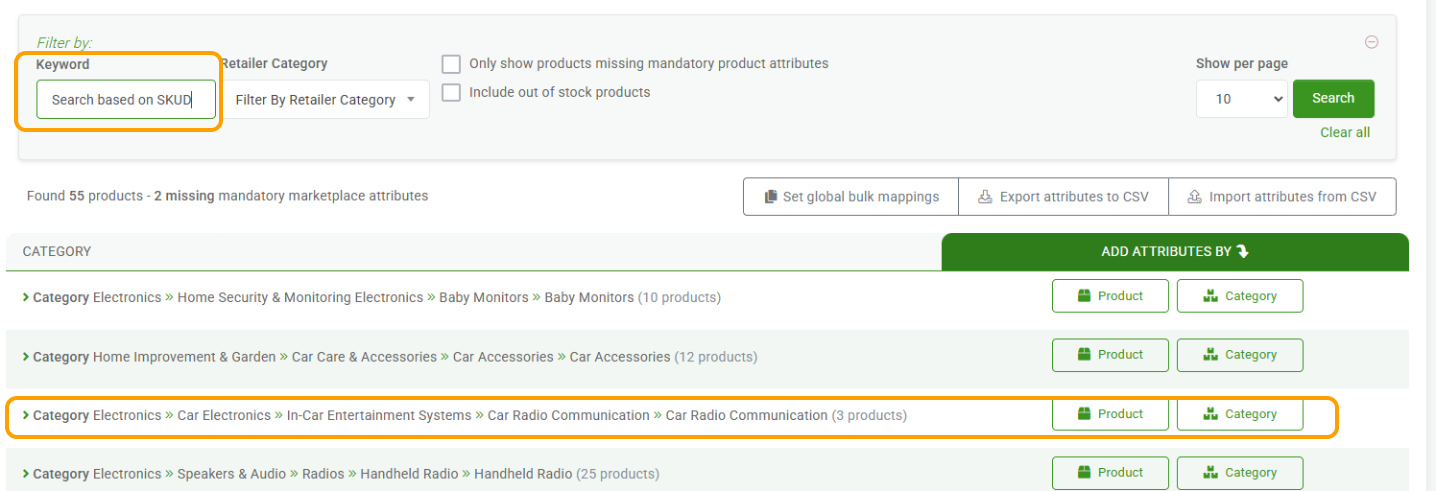
- If you searched for a product, you still have two options. Click Product OR Category. If you click Product, you will see the screen below, where you can enter data into key features. The fields are free text, so start typing your key feature wording into each field. When you finish typing your data and pause a little, the Update message will appear under the field.
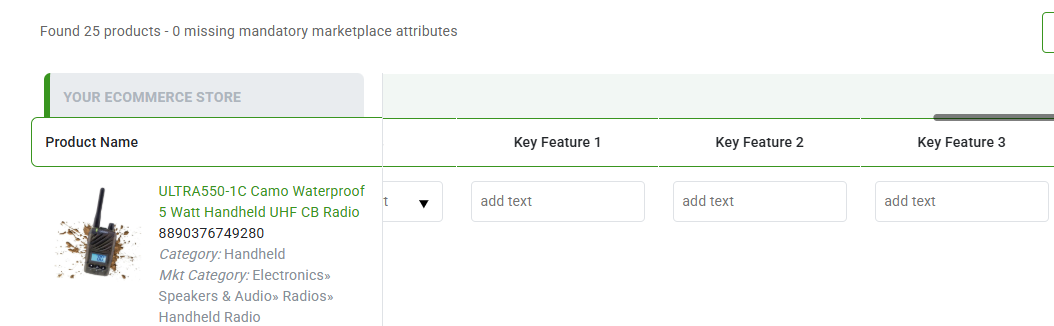
- If you click Category, you will see the screen below, where you can add in bulk. Type your text and click the green plus to save your changes.

- The length of the key features must be lower than or equal to 350 characters, a space is a character.
- There is an option to update key features in bulk using AI-generated information. To do this please ask your Integration Specialist or our Support Team. Contact Here.
- The changes that you make will be updated to the product and picked up in the next upload to JB Hi-Fi.
- If you do use this process to set Key Features for some products, then you contact us to use the AI-generated method, the Key Features you have already completed manually will remain in place.
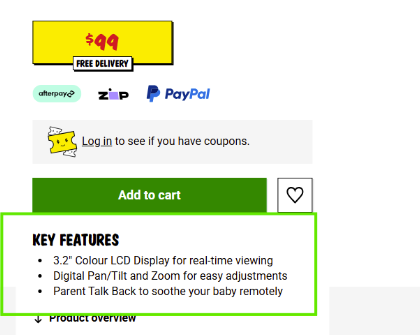
- Key Features will appear on your listing and will look like this.