
TABLE OF CONTENTS
Overview
This FAQ provides an overview of shipping options on the JB Hi-Fi marketplace.
Shipping is generally set up within JB Hi-Fi and will be discussed with you by your account manager.
You will also need to create at least one shipping policy in Omnivore, but this should only be done after you’ve completed your shipping setup in your Bunnings seller account.
Shipping Options
The options available for shipping are:
- Flat rate shipping
- Standard
- Free shipping on all products or for products over a certain threshold
- Shipping based on defined shipping zones - create a flat rate for each zone. You can also set different rates for parcel sizes within each zone.
- Weight-based shipping - you will need to set up Product Groups using the Weight criteria in Omnivore, then link each product group to a JB Hi-Fi Shipping Class in the Omnivore shipping policy.
- Shipping charges for different products as defined using Product Groups in Omnivore.
For additional assistance and setup articles, search for "Shipping" in your JB Hi-Fi Partner Hub dashboard.
Set Up Steps Within Omnivore
As per the JB Hi-Fi Setup Guide, make sure you have set up your Shipping Zones, Free Shipping if required and shipping costs for each zone.
We recommend reading all of the scenarios below to fully understand which scenario/s will work best
Default Shipping Policy
Note that you must provide a default shipping policy that doesn't have a product group defined; otherwise, you will see the warning "Please define a default shipping method" on the dashboard. The default shipping method acts as a fallback policy for products that do not fall into any defined group.
Scenario 1 - Using one shipping zone and a default shipping policy
- Shipping setup in Omnivore can be found under Settings > JB-Hi-Fi > Shipping. The snippet below shows a simple one-policy-only setup that is the default.
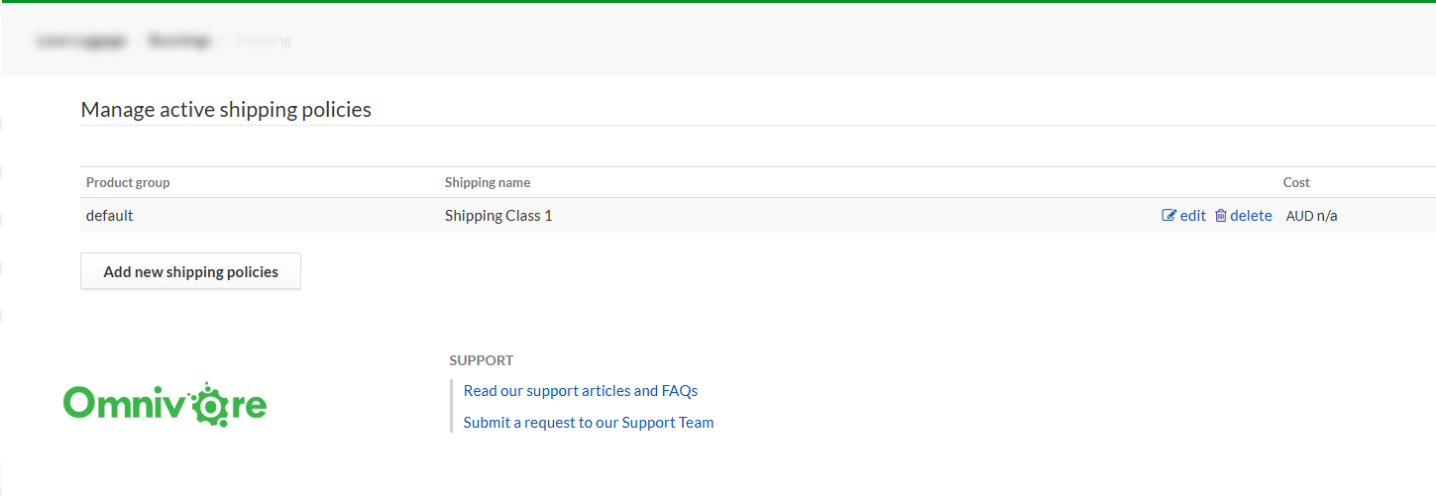
- To set up something like this, make sure your Shipping Zone is set up on JB Hi-Fi first if required.
In Omnivore, click Add new shipping policy, then complete the fields, choosing Free or a Shipping Class from the Policy name dropdown.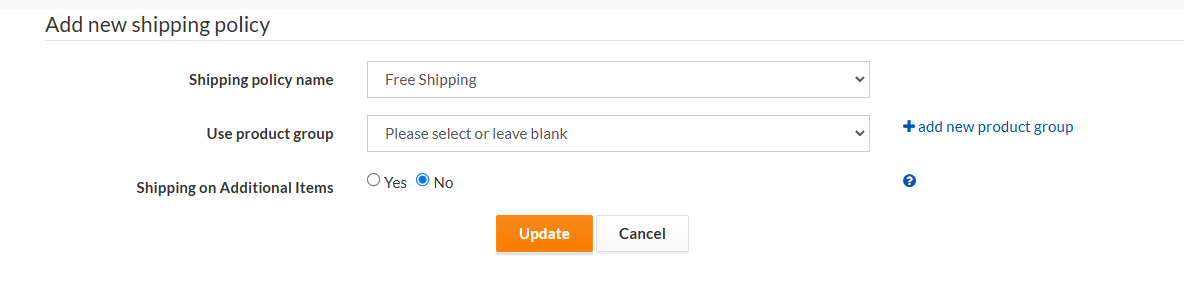
- Do not select a product group, so the policy name will be set to default.
- Click Update
Scenario 2 - Using multiple shipping zones and product groups
- The scenario below shows shipping using multiple shipping zones / classes and product groups.
The seller has created product groups based on product type categories and they are assigned to Shipping Classes on JB-Hi-Fi.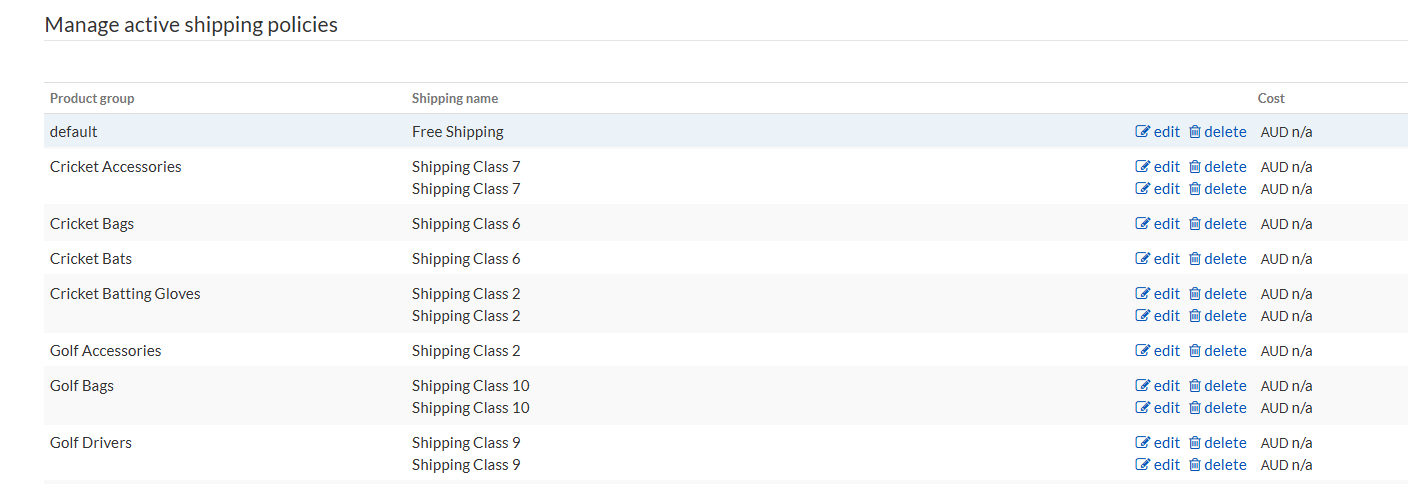
- In Omnivore, click Add new shipping policy, then complete the fields, choosing the relevant Shipping Class from the Policy name dropdown, then select a Product Group from the Use Product Group dropdown.
- Product Groups can be based on SKU, price, weight, category and brand. How to set up a Product Group
Scenario 3 - Free Shipping
- To set up FREE shipping, we recommend contacting JB Hi-Fi seller support first.
- Then, within Omnivore, go to Settings > JB Hi-Fi > Shipping, create a new policy and select Policy Name Free Shipping (with or without a product group depending on your setup).
- JB Hi-Fi also has the ability to set free shipping at the order level.
Scenario 4 - Shipping by weight
- Each product must have a weight in your e-Commerce platform, and it is usually added in kilograms. To check that Omnivore has imported your weights, go to Products > On JB Hi-Fi. In the table of products, there is a column called 'Weight' which will display the relevant value.
- Magento users: In Omnivore, go to Settings > Feeds > General. Scroll down and click the Map Fields button. Ensure that the Magento weight field is showing in the Omnivore weight field.
- Create your Product Group based on Weight by following this FAQ here.
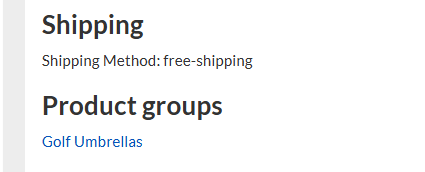
- To check if a product has been assigned to a product group, go to Products > On JB Hi-Fi. Find the product and click through to the page that provides the full product details. Scroll down to the box JB Hi-Fi Product View and you will see a list of Product Groups that the product is assigned to.
- Now that you have your weight-based groups set up, you can create a shipping policy, select your Shipping Class and assign a weight Product Group in Omnivore.
- See scenario 2 above, which follows the use of groups.