An overview of setting up a new SFTP retailer in Omnivore.
Before you start
Ensure the retailer has an SFTP client such as Filezilla so they can access the SFTP. This may also be handy for you to have so you can check files are in the correct folders etc. Make sure you know how the retailer wants to use the SFTP. Some will just update stock via their product feed, others will need to use the inventory feed as well as stock changes more often. If the retailer is 'ringfencing' stock the daily product feed update will normally be fine.
TABLE OF CONTENTS
Step 1: Create an account in Omnivore
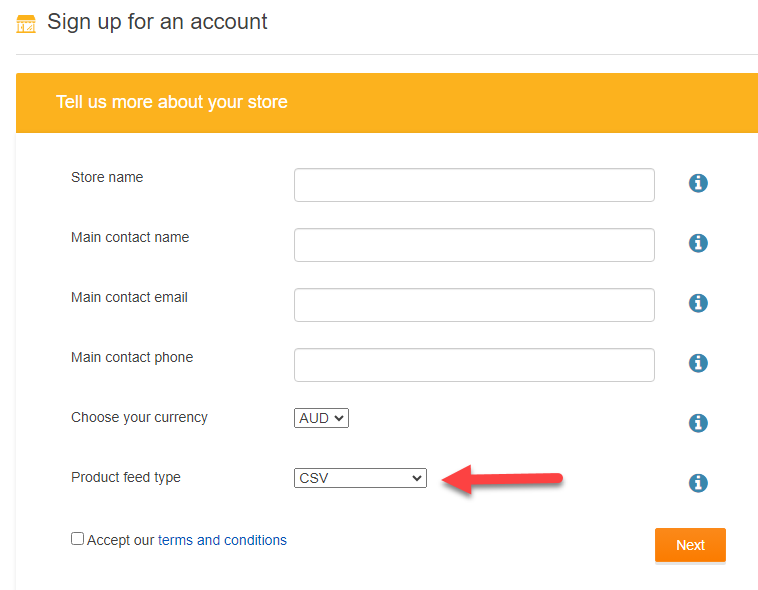
- Sign up for an account with the retailer's details. Ensure you choose CSV as the product feed type.
Step 2:
- set up sftp (need to find article link)
Step 3: Add SFTP details to Omnivore Settings
- Navigate to Settings > Custom Pull CSV Feed > General.
Here you will add the details for the SFTP as provided when created. These will be added to the above Trello by Steve. If using inventory feed add this here as well. Ensure SFTP is selected for how we download the feed, this will be CSV until you make this change. If there is a file in the SFTP you can do the test download to ensure the connection is working. Use Filezilla to check the SFTP folders, or to put a test file in if required.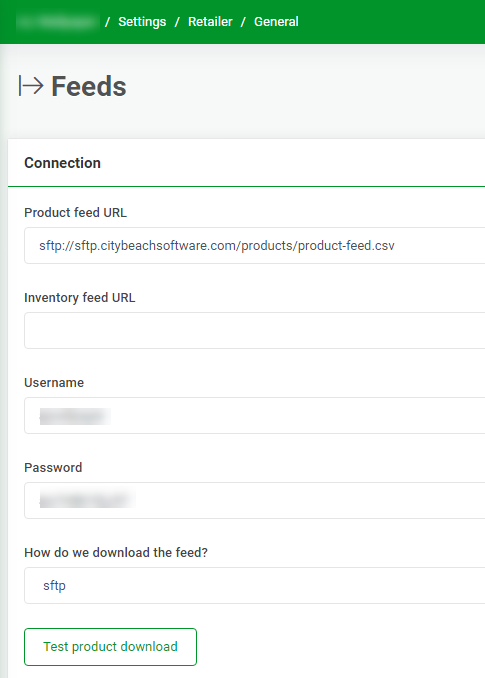
Step 4: Set Adapters & Crons
- Navigate to Settings > Administration > Implementation.
Here you'll set the adapters being used. The standard is as below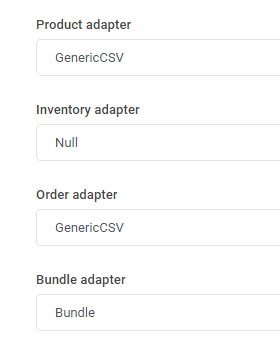
If the retailer is using the inventory function, this adapter would also be set to generic CSV.
If the retailer has a custom schedule requested, this will be a new adapter. For example, ABM has a specific order export schedule, this was created and is set, as below.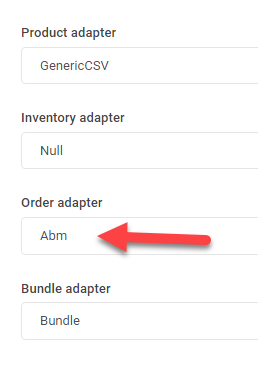
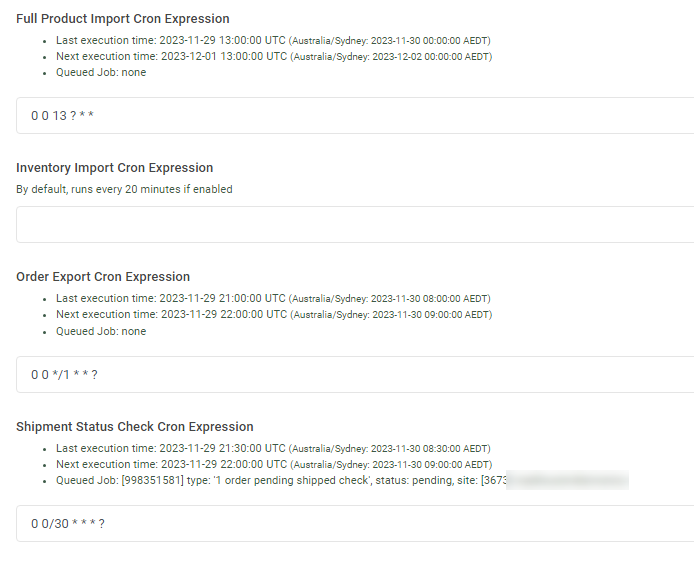
- Set the corn jobs for the requirement of the retailer. Below retailer is a fairly standard example of how the crons will be for a normal retailer with no special requests.
Step 5: Map Fields
- Navigate to Settings > CustomPullCsv Feed > General
Here you will map the columns of the file so Omnivore knows how to process the file.
For Coles, the current mappings are as below.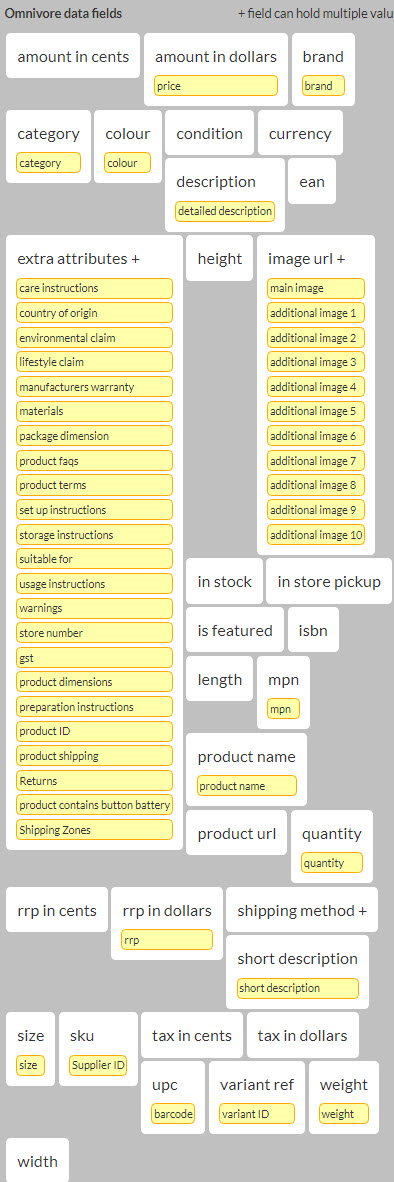
Setting these mappings will set the number of columns Omnivore expects in a file. If a retailer puts a file with too many or too few columns into the SFTP and Omnivore tries to process it, the file will fail and the retailer will be alerted via a support alert on the dashboard.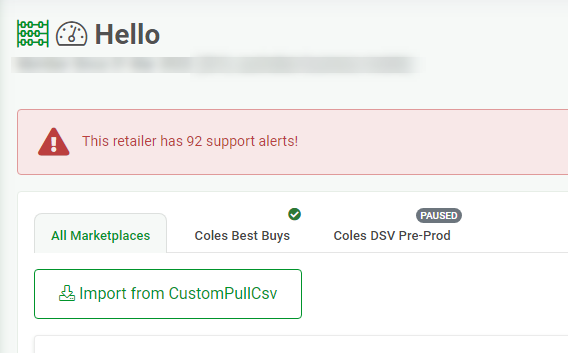 The failure will read similar to Invalid number of columns (79 not expected 46) found when parsing product CSV
Opening a file with this error should show an invalid number of columns.
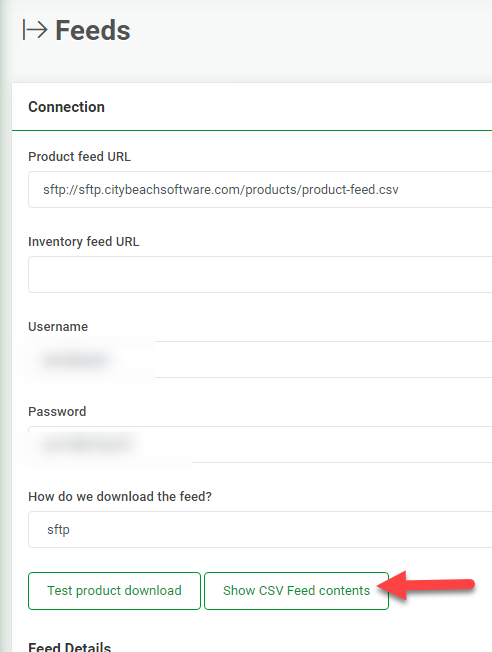
If you cannot see the issue, you can use the Show CSV feed contents button to see on screen how Omnivore is parsing the file if there are issues, so you can advise the retailer of their error. An example of where this is useful, if a retailer uses " to denote inches, and this isn't formatted correctly, this can make the file be incorrectly parsed./ This button allows you to see the issues better.