
TABLE OF CONTENTS
- KMART Marketplace Setup Overview
- Connect Omnivore to KMART
- Sellers With Existing KMART Listings
- Product Identifiers
- Choosing Which Products to List
- Products Title and Descriptions
- Price and Pricing
- Shipping
- Product Claims
- KMART Image Requirements
- Stock Buffer
- Testing
- Customer Email Addresses
- Final Check before clicking “Start Selling” in Omnivore
- FAQ's Mentioned In This Article
KMART Marketplace Setup Overview
NOTE: At this time Kmart Setup and Onboarding is not entirely DIY, please read this guide here so we can get you selling on Kmart.
We do recommend reading this setup guide, and basic requirements below. It will help as you work with the Onboarding Teams.
Connect Omnivore to KMART
- You must have your KMART Marketplace Seller Account fully set up before completing this step.
- When you add the KMART marketplace in Omnivore, you’ll be prompted to connect Omnivore to Kmart through a secure authentication process. In this step you will need to log in to your Kmart Store.
- Read more ...
Sellers With Existing KMART Listings
- If you already have listings on KMART, please submit a ticket to our Support/Integration and Onboarding Team.
Additional requirements apply for linking existing listings, and these must be followed before enabling the start selling within Omnivore. - Read more ...
Product Identifiers
- KMART requires all products to include valid identifiers such as UPCs, MPNs, or ISBNs.
- Omnivore will import this information from your ecommerce store.
If you use Magento or WooCommerce, ensure you correctly map these data fields during setup. All other eCommerce platforms don't require field mapping for UPCs/GTIN. - Read more ...
Choosing Which Products to List
- Products must be assigned to a KMART category before they can be listed. You can find instructions in the Category Mapping guide below.
- If you don’t want to list a product, you can block it or simply avoid assigning a KMART category.
Products can be blocked individually, or excluded by brand or keyword. - All products and offers must be approved by KMART Account Managers before appearing live.
- Read more ...
Products Title and Descriptions
- Products titles have to be formatted as Brand Name + Product Name, eg. Puma Classic Ladies Tennis Shoe. Title customization can be setup within Omnivore.
Product descriptions supplied should be original to Kmart and not copied from other site including seller or other third-party sites. - A suggested format for Product Description is:
- Brand Name + Product Name has [main use and function] with [features 1,2,4], ideal for [this type of buyer].
- Product Title and Product Descriptions can be modified in Omnivore using our Product Actions Feature.
- Read more ...
Price and Pricing
- Use the promotions feature in Omnivore if you'd like to adjust prices for individual products or grouped products.
- Omnivore sends the 'sell price' to Kmart, during your onboarding stage we will apply the correct price settings to ensure the correct price is sent to Kmart.
- Read more ....
Shipping
- Shipping must be set up in your KMART Seller Account first: go to My Account → Settings → Shipping and Delivery
- After configuring your shipping zones and rates, link Omnivore to your KMART shipping classes.
You can also create Product Groups in Omnivore for assigning different shipping classes to different sets of products. - Read more ....
Product Claims
Sustainability claims must be inline with Kmart policy guidelines and can be found here - https://www.kmart.com.au/bettertogether/ & pages 7 - 11 of the Product Specifications document
KMART Image Requirements
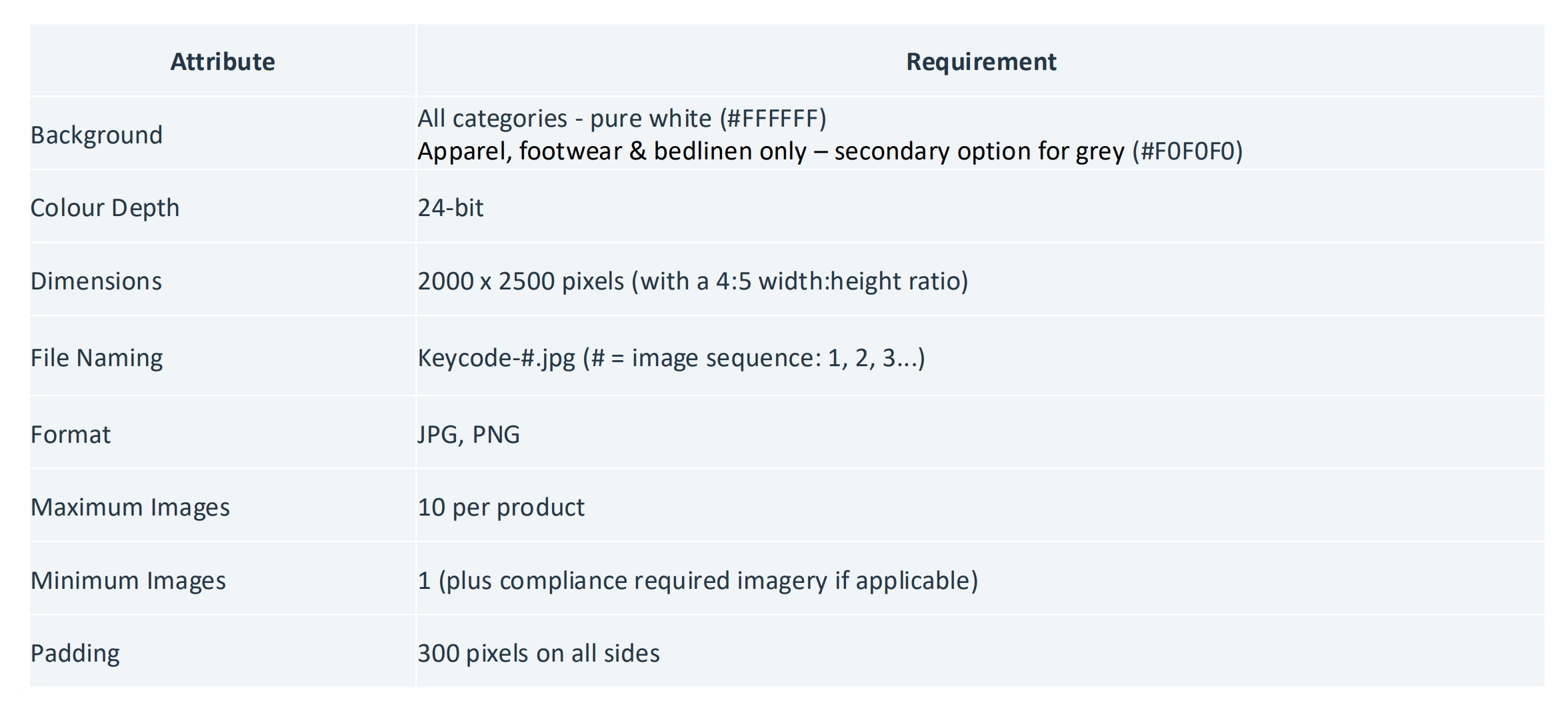
KMART has specific and mandatory image guidelines:
- Image size must be 2000 × 2500 pixels
- Hero image must have a pure white background
- No lifestyle imagery in the hero image
- Apparel hero images must not include posed talent
- Non‑apparel hero images must not include any talent
- No AI‑generated content
- No images where rights are not owned
- No infographics, icons, or text
- Only include props that come with the product
- Avoid user‑generated content
- Do not show variants on the image and instead use the variants on the PDP to showcase options
- Avoid model cutoffs or product cutoffs
- Avoid infographics, icons, text on any images, limited propping
Stock Buffer
- If you want to reduce the risk of overselling low‑stock items, set a stock buffer in Omnivore.
- To set a stock buffer for all of your products in Omnivore go to Settings → Administration → Product Import - Minimum stock buffer.
- To set a stock buffer just for Kmart in Omnivore go to Products - Product Actions - Create Stock Buffer. Select the marketplace and all other fields.
- Read more ...
Testing
Omnivore strongly recommends full testing before launch.
Test your ecommerce connection
Go to Settings → Feeds → General → Test Connection
You should see “API connection successful.”
Test Order deliver
- Open a product in Omnivore and click on the Kmart Tab.
- Scroll down under the Variant heading and click the green button called Test delivery order
- A test order will generate and appear in your ecommerce system (no payment involved)
- Fulfil and refund the order in your ecommerce platform
- Mark the order as “Refunded Online” in Omnivore
Customer Email Addresses
KMART does not provide customer email addresses. If your ecommerce system requires an email, set a default placeholder in Omnivore under:
Settings → KMART → General → Default Order Email
Use: ${order_id}@<yourdomain.com>
If you cannot see this setting please submit a ticket to our Support Team.
Final Check before clicking “Start Selling” in Omnivore
The KMART tab will display “Setup” until all required steps are complete. Ensure each item below is finished before clicking Start Selling.
- Your KMART Account is setup and active
- Products are mapped to KMART categories
- Shipping configuration is complete in Kmart and Omnivore
- Unwanted products are excluded
- No unresolved listing errors in the Dashboard
- Your Product Titles, Product Descriptions and Images fit within the Kmart Standards
FAQ's Mentioned In This Article
Connect Omnivore to your KMART Store
Consider your existing listing
Map your product to KMART Categories
Create a promotion to change the price of your product