
TABLE OF CONTENTS
If you want to prevent a specific image from showing on your Kogan listing, you can use Omnivore’s image block feature. This is useful if an image is outdated, irrelevant, duplicated or doesn't meet Kogan's image requirements, but you don't want to remove it from your website.
Steps to block an image
- Log in to Omnivore and go to Products → Kogan
- Find the product containing the image you want to block.
- Click on the product title to go through to the product page where you will see the full data for that product.
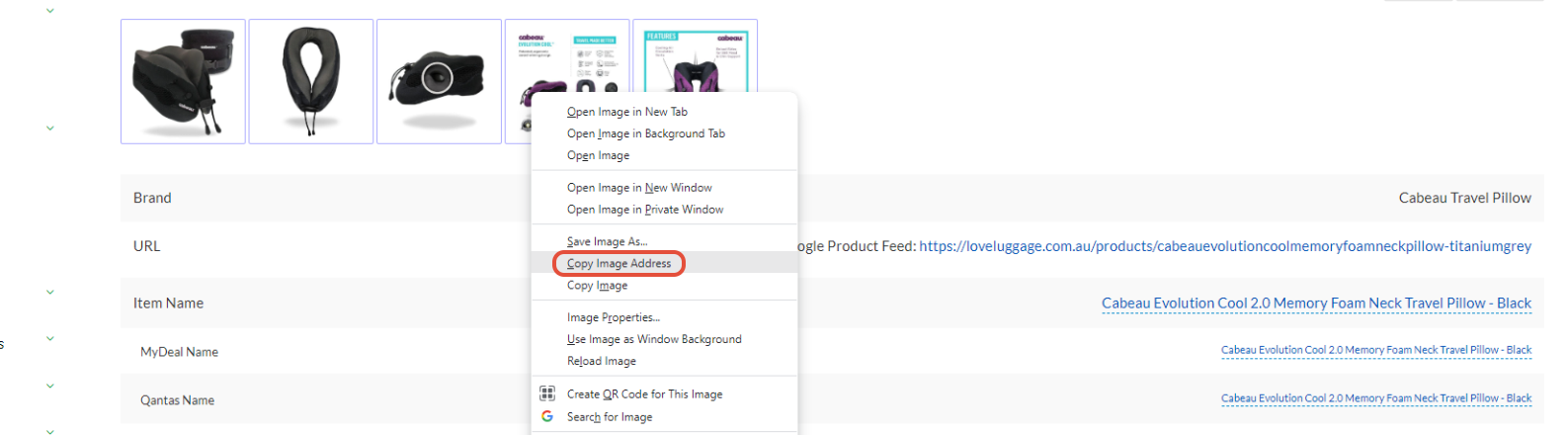
- In the top section, right click while hovering over the image that you want to block and click 'Copy Image Address' or 'Copy Image URL' depending on your browser.
- Now go to Settings → Kogan → General.
- In the field 'Exclude these images' paste the URL you copied in step 4.
- You can add multiple URLs here, add each URL on a new line.
- Note: ensure there are no spaces on either side of the URL.

- Click the 'Update Settings' button at the bottom of the page to save.
- Go to the dashboard, click on the Kogan tab, click 'Upload to Kogan' and wait for the sync to finish.