
Steps on how to use the SFTP for retailers new to using this.
- Install Filezilla or the like to view SFTP, and log in to SFTP with this program and the credentials we supply.
- Populate product-feed.csv and drop into the Product folder of SFTP. Omnivore will look for this and process the file.
- Orders will be exported to the orders folder. Check this periodically, and when a file is there take this to process through your own systems. Once taken, the order file can be dropped into the Archive > Orders folder or removed.
- Populate a shipments.csv file to process the orders in both Omnivore and the marketplace. Place this file in the shipping folder in the SFTP. Omnivore will process this, mark orders shipped with the carrier and tracking information the file provides and pass this info to the marketplace.
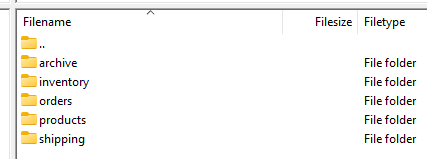
Below is a very simple explanation of the SFTP for the non-savvy retailer.
Collecting Orders:
SFTP is like a virtual mailbox where we receive orders from different sources. Log into the SFTP with the credentials we have provided via a program such as Filezilla. Take all the order files from the orders folder and process these through your systems to created the orders.
Processing Orders:
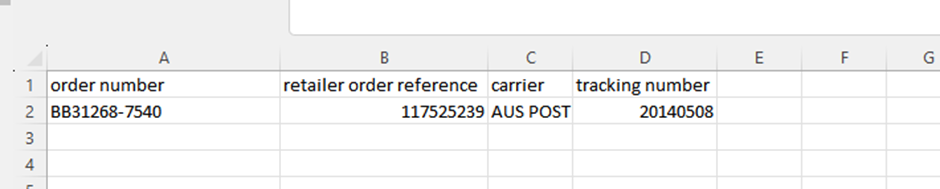
After processing the orders in your system, create a file called "shipments.csv" that contains information about the orders. This "shipments" file is like a list that we create. For each order we've processed, we note down its order number. Then, we add details like which delivery company will carry the order and the tracking number that helps us follow its journey.
Please ensure all columns are filled out as below.
Saving and Sharing:
After we've added all the processed orders and their shipment details to the "shipments.csv" file, save it. Then place this file back into the SFTP Shipping folder.
Sending to Omnivore:
Another system, called Omnivore, picks up this file from SFTP. Omnivore uses the information in the "shipments" file to start shipping the orders. It adds the tracking details to the orders.
Passing to Coles:
Once Omnivore has added the tracking, it lets Coles know. Coles can now keep an eye on the orders as they get delivered to customers.
Think of this process like packing and sending out orders, but everything happens digitally. It's like making sure all the pieces of a puzzle are in the right place before sending them off for delivery.
When testing, only shipped orders are to be added to the Shipments./csv file. Any refunds or cancellations are to be handled manually in Omnivore for testing.